

Collections
The Collections Module transforms static property lists into a "live" property portfolio. Get ready to: Curate. Feature. Inspire!
The Collections Module transforms static property lists into a "live" property portfolio. It allows you to highlight specific listing groups on your website or share curated selections directly with clients via dynamic, fully automated links. By replacing outdated PDF attachments and generic search links, you provide a modern, interactive experience that evolves as the market changes.
Why Use Collections?
- Deliver a "VIP" Experience: Eliminate "decision fatigue" by replacing generic search results with hand-picked selections tailored to your client’s specific needs (e.g., “Modern Apartments” or “Your Top 5 Weekend Picks”).
- Automated Accuracy: Unlike static PDFs, Collections are live. If a property no longer fits into the collection criteria (sold or the price drops), the Collection updates automatically—ensuring you never share outdated information.
Best Practices for Maximum Engagement
Follow these strategic guidelines to save time and increase client conversion:
- Use High-Impact Titles
Target specific lifestyles rather than using internal file names.- Avoid: Client John Search or Listings 1
- Use: Family Homes Near Lincoln Elementary or Luxury Homes
- Utilize "Smart" Dynamic Filters
Save time by creating Collections based on specific criteria (e.g., "Price Drops in the Last 7 Days").- The Benefit: Your website stays fresh with "new" content for returning visitors without any manual updates.
- Curation for Lifestyle & Seasons
Use Collections to build instant landing pages for seasonal trends.- Examples: "Poolside Summer Retreats" or "Cozy Fireplace Escapes."
- Pro Tip: Rotate your homepage "Featured Collection" monthly to boost SEO and show Google your site is active.
- Optimise Your Sharing Channels
Collections are mobile-responsive and designed for instant viewing.- For Hot Leads: Share links via WhatsApp or SMS directly from the management system. These channels have significantly higher open rates than email and facilitate faster conversations.
### Quick-Start Strategy Guide
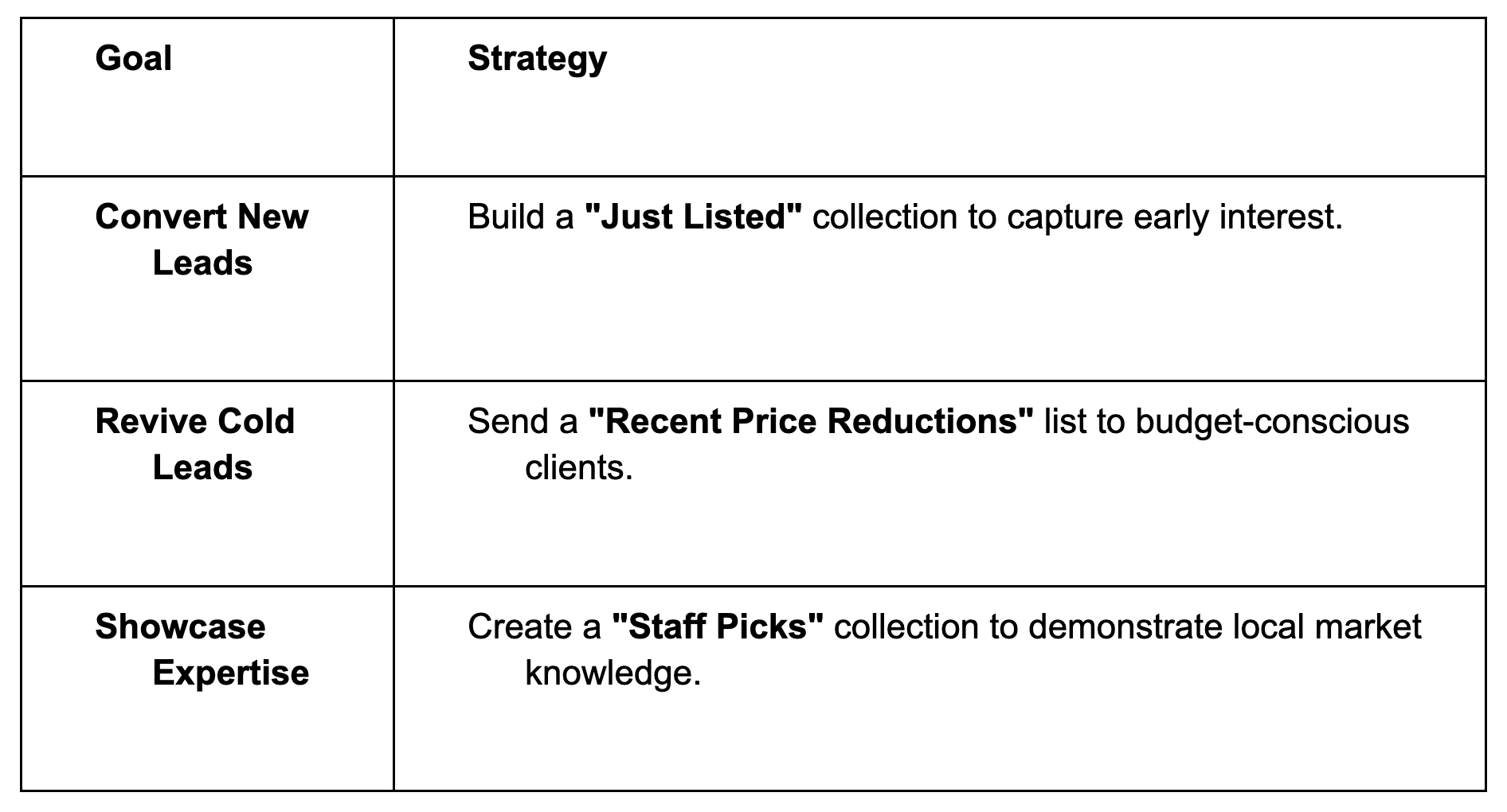
Key Features & Benefits
Feature Set:
- Custom Grouping: Easily tag or categorize listings by theme or feature.
- Dynamic Syncing: Collection URL updates instantly as property statuses change.
- Zero-Code Display: Feature collections on your homepage or as standalone landing pages—no developer needed.
The Benefits:
- Fresh Content: Keeps your site engaging with minimal effort.
- Niche Marketing: Target specific buyer personas (e.g., luxury, first-time, eco-friendly) instantly.
- Visual Appeal: Offers a superior, modern browsing experience.
- Agile Campaigns: Launch brand themes or special promos in minutes, not hours.
Managing Collections: User Guide
The Collections module allows you to group specific listings for easier management, and sharing.
When the module is activated you will find Collections in the Listing module
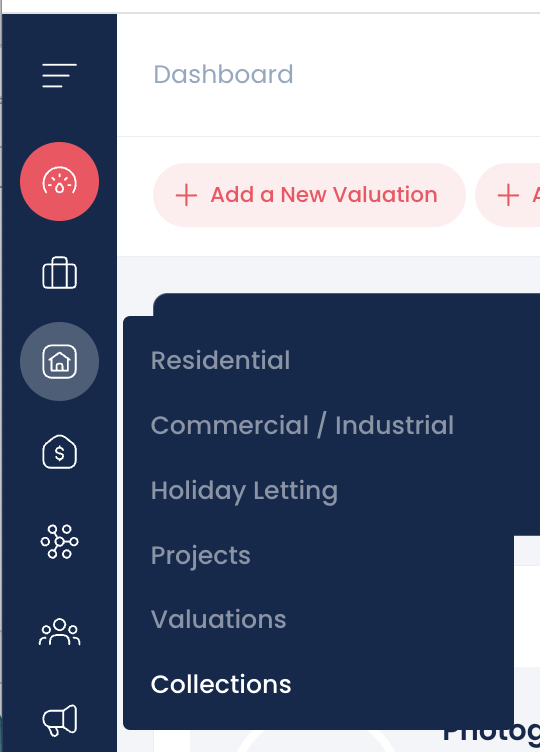
1. Accessing Collections
- Navigate to the Collections tab – found in the Listing module
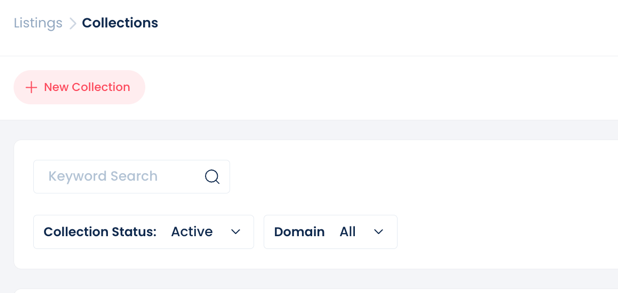
- The Summary Page will display all existing collections.
- Default View: Shows "Active" collections only.
- Standard Columns: You will see Collection Name, Agent, Status, Dynamic (Yes/No), and the Number of Listings.
- Customization: Use the Custom Column View function to adjust which columns are visible.
2. Creating a New Collection
- Click the Add New Collection button (located in the top-left corner).
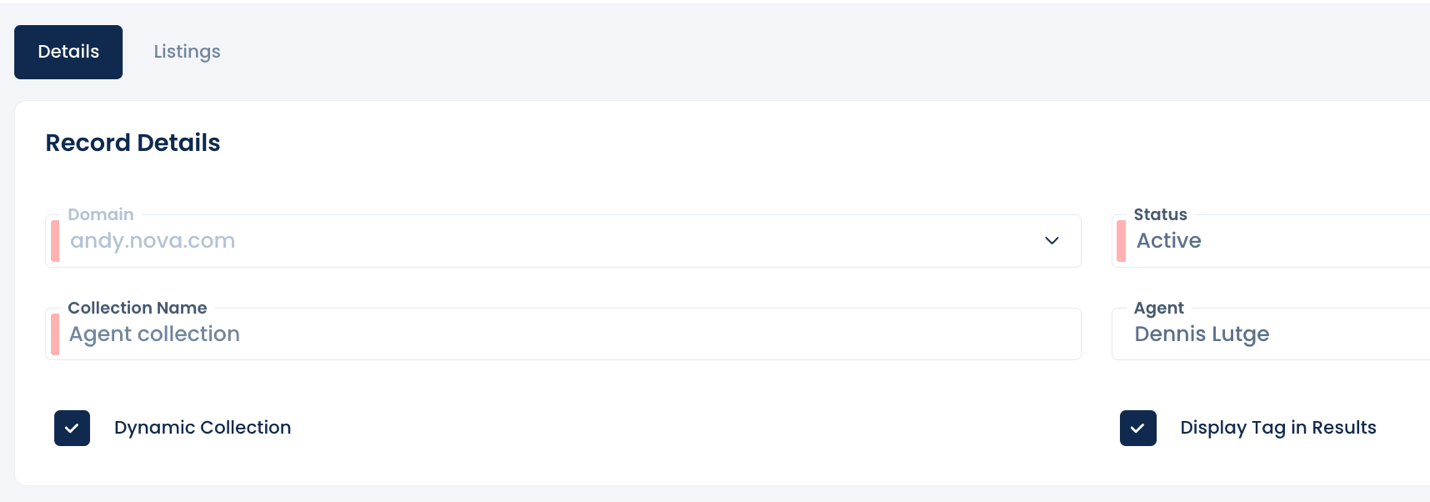
- Complete the Required Fields:
- Domain: Select the relevant domain.
- Status: Set the collection status.
- Collection Name: Enter a descriptive name.
- Optional Settings:
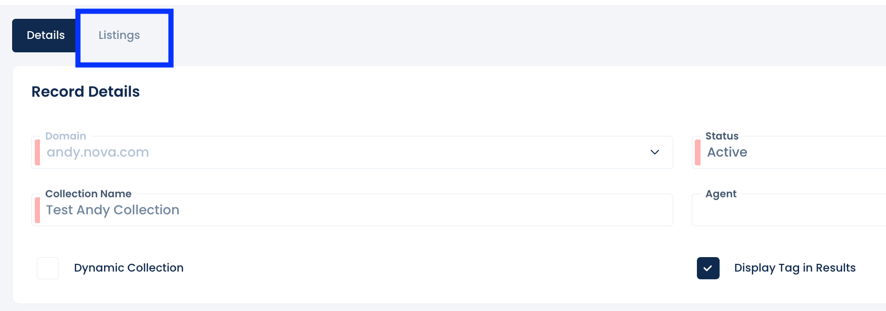
- Dynamic Collection: Check this box if you want listings to auto-populate based on specific listing criteria.
- Display Tag in Results: Toggle this to show listing tags on the collection’s results page.
- Click Save Collection (top-right corner).
3. Managing and Editing Collections
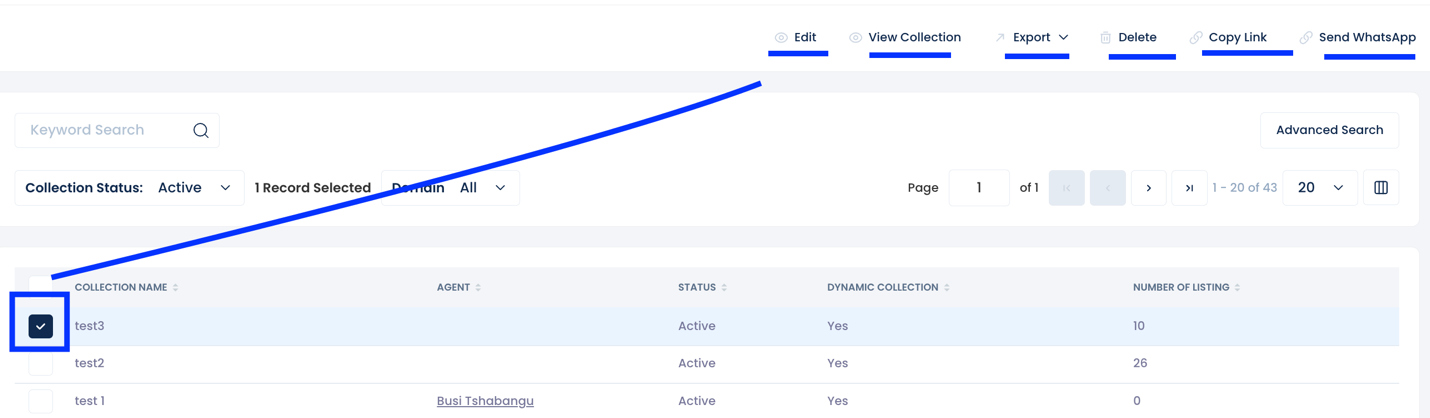
To manage a collection, select the checkbox on the left-hand side of the summary page. Once selected, a toolbar will appear with the following options:
- Edit
- View Collection
- Export
- Delete
- Copy Collection Link
- Send via WhatsApp
4. Adding Listings to a Collection
To define which properties appear in your collection, select Edit and navigate to the Listings tab, on right next to Details.
A. Using Filters & Tags (e.g., Luxury Properties)
If you want to create a collection for a specific category like "Luxury Properties" (which is not a standard field):
- Create a Tag: Ensure you have created a "Luxury Properties" tag in your listing settings.
- Tag the Listing: Apply this tag to individual listings when creating or editing them.
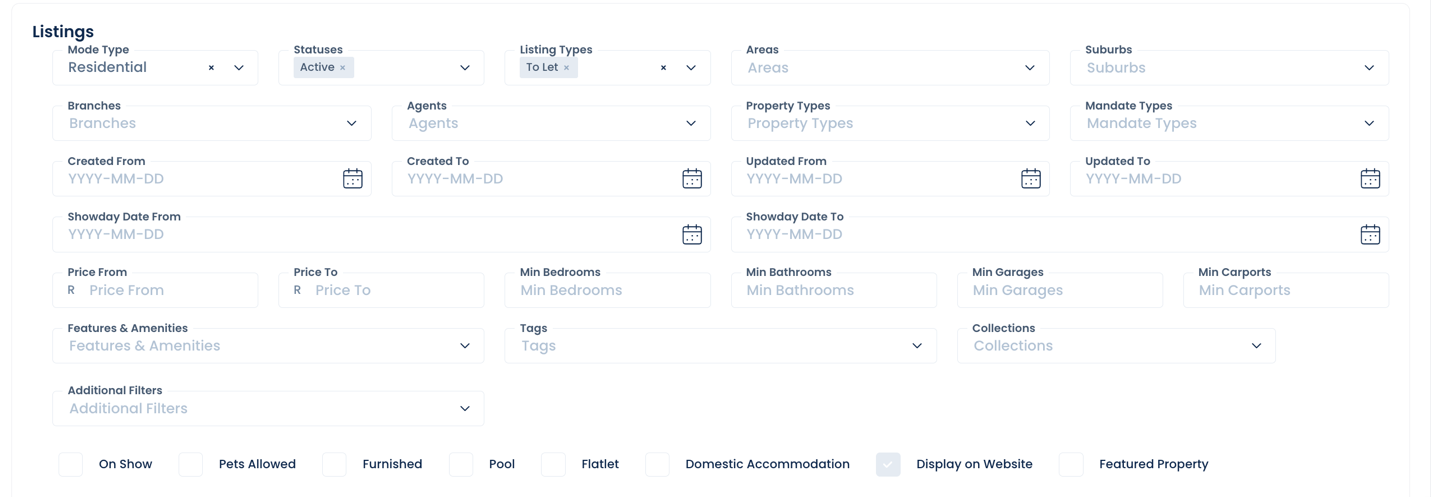
- Filter the Collection: In the Collection's Listing tab criteria, select the Tags field and filter by "Luxury Properties."
Note: For more details on tags, refer to the Tag Management Guide.
B. Dynamic vs. Manual Collections
- Dynamic Collections: If "Dynamic" was selected during setup, any new listings added to the branch that match your collection criteria will be added automatically.
- Manual Collections: If the collection is not dynamic, you must manually select properties. Use the checkboxes on the right to add listings; these will then appear in the "Selected Listings" view at the top.
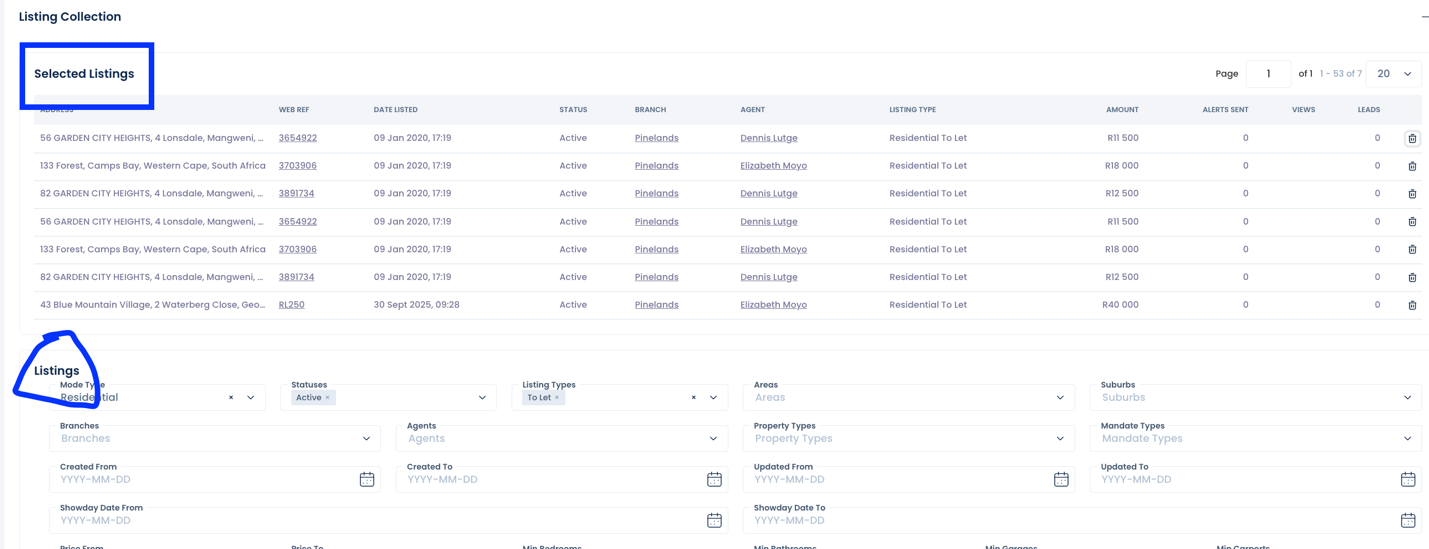
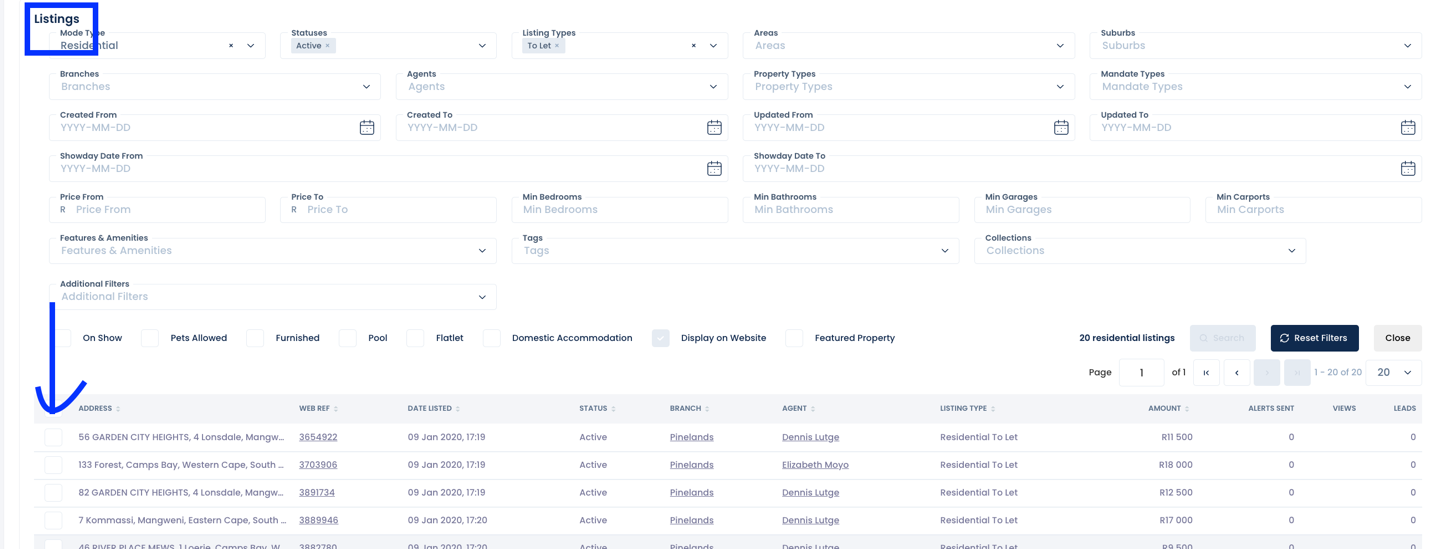
Final Step: Always click Save Collection after updating your listing criteria.
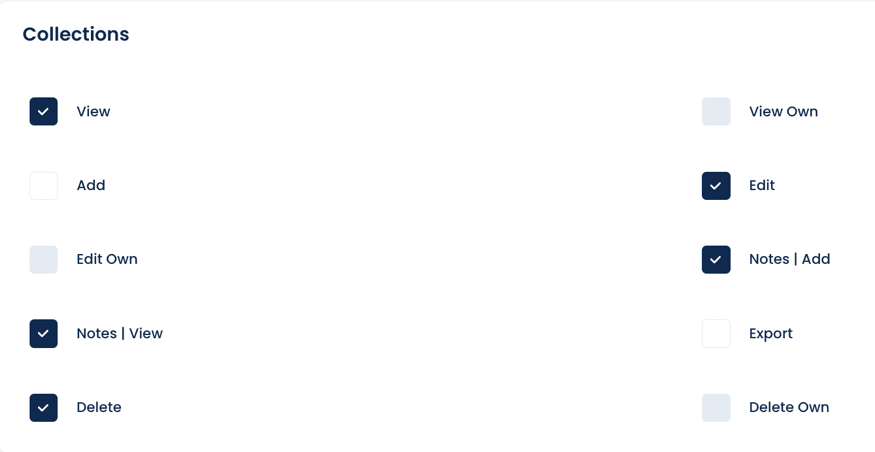
Remember to check user group settings.
How will Collections display on my website?
A navigation link can be added to your website main navigation (in the website header). Please contact Prop Data support to create the navigation item for you.
See "The Cape Town Collective" in our example below:

If you selected "Display Tag in Results" when you added your collection, you can expect the collection name to show under the listing hero image. See "The Cape Town Collective" in our example below:
